macOS installation guide
Install Kardly and connect your iPhone
Follow these steps for the first launch on macOS. The app works on Apple Silicon and Intel.
Download and open the DMG
Download Kardly.dmg from this website and double-click to open it.
Download Kardly for macOSDrag Kardly to Applications
In the DMG window, drag Kardly to the Applications shortcut. Open the copy in Applications and eject the DMG when you are done.
Understand the macOS alert
Open Kardly from Applications. The first launch may ask for confirmation or be blocked by macOS.
Only continue if you downloaded Kardly from this website and expected to install it.
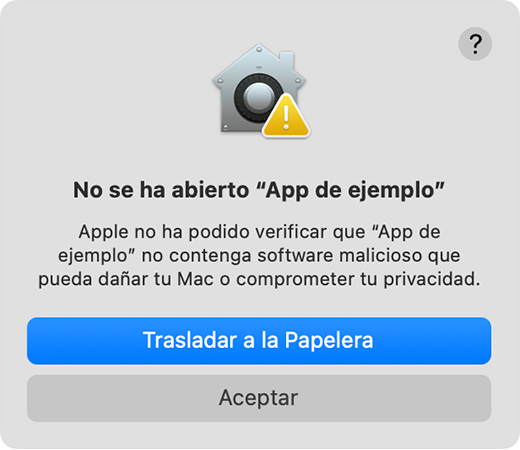
Captura oficial de Apple: aviso de comprobación de seguridad. 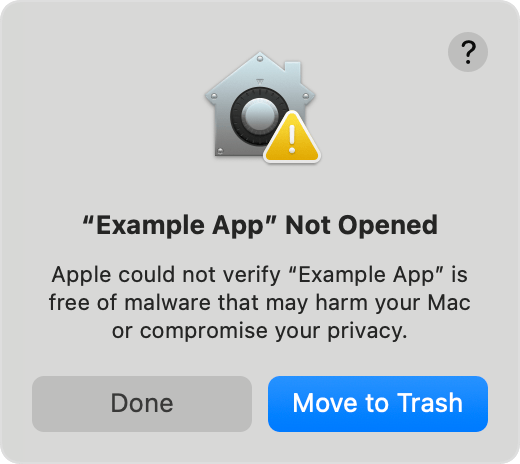
Official Apple screenshot: security verification alert. What each message means
- “The app was downloaded from the Internet.” This is the normal first-launch confirmation for an app from an identified developer. If you expected to install Kardly, choose Open.
- “Apple cannot check it for malicious software.” macOS could not make that check. Do not continue unless the app is from a trusted source and has not been altered.
- “The developer cannot be verified.” macOS cannot confirm the developer’s identity or notarization. Apply the same care: confirm the source before continuing.
- “The app will damage your computer” or “is damaged.” Do not try to bypass this alert. Delete the file and download it again, or contact Kardly if it continues.
Allow Kardly to open from System Settings
If macOS blocked Kardly, try opening it once and follow these steps.
- Open System Settings.
- Open Privacy & Security, scroll to Security and click “Open Anyway” next to the Kardly message.
- When the alert appears again, click “Open” and confirm with your password or Touch ID if asked.
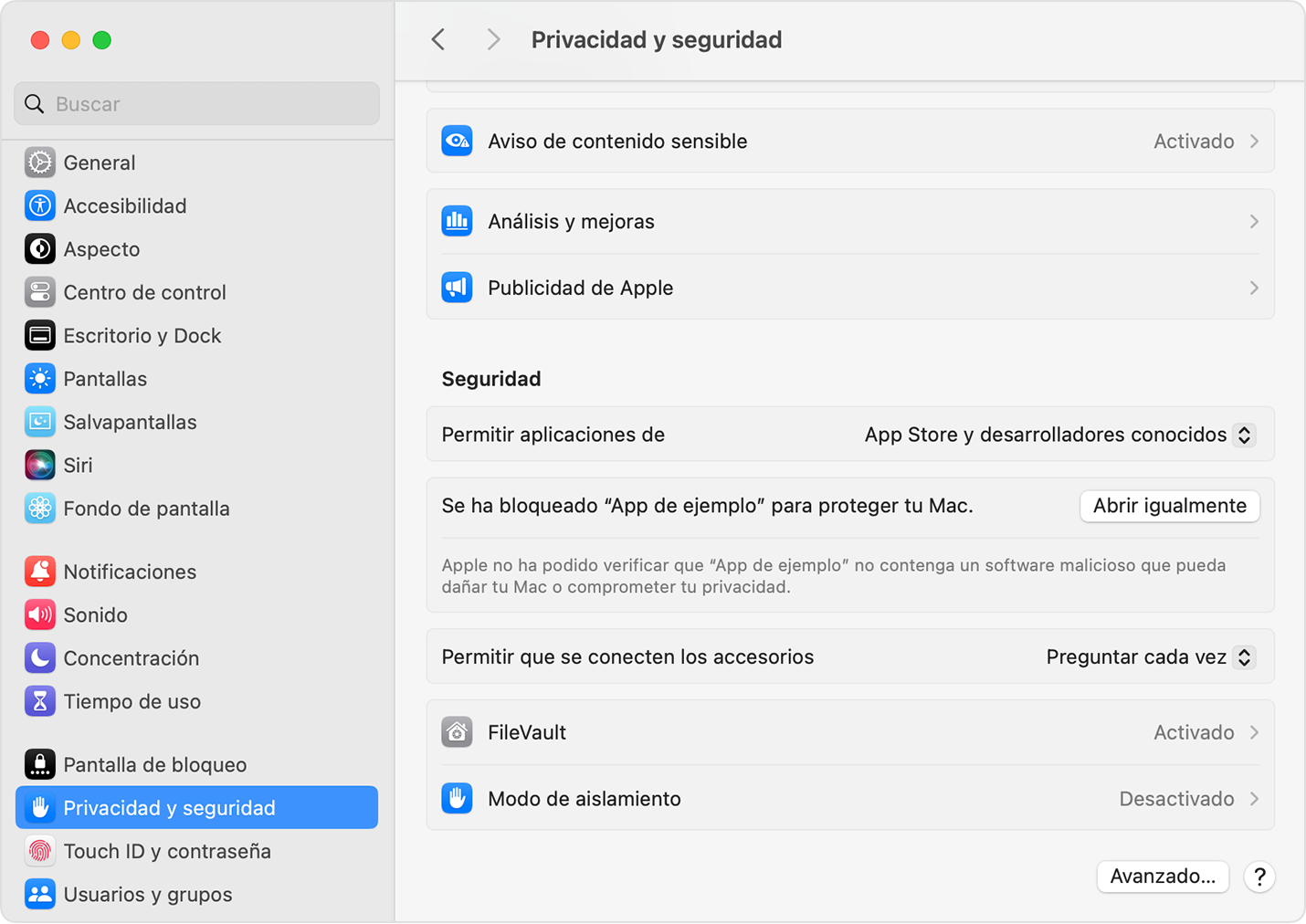
Captura oficial de Apple: el botón «Abrir igualmente» en Privacidad y seguridad. 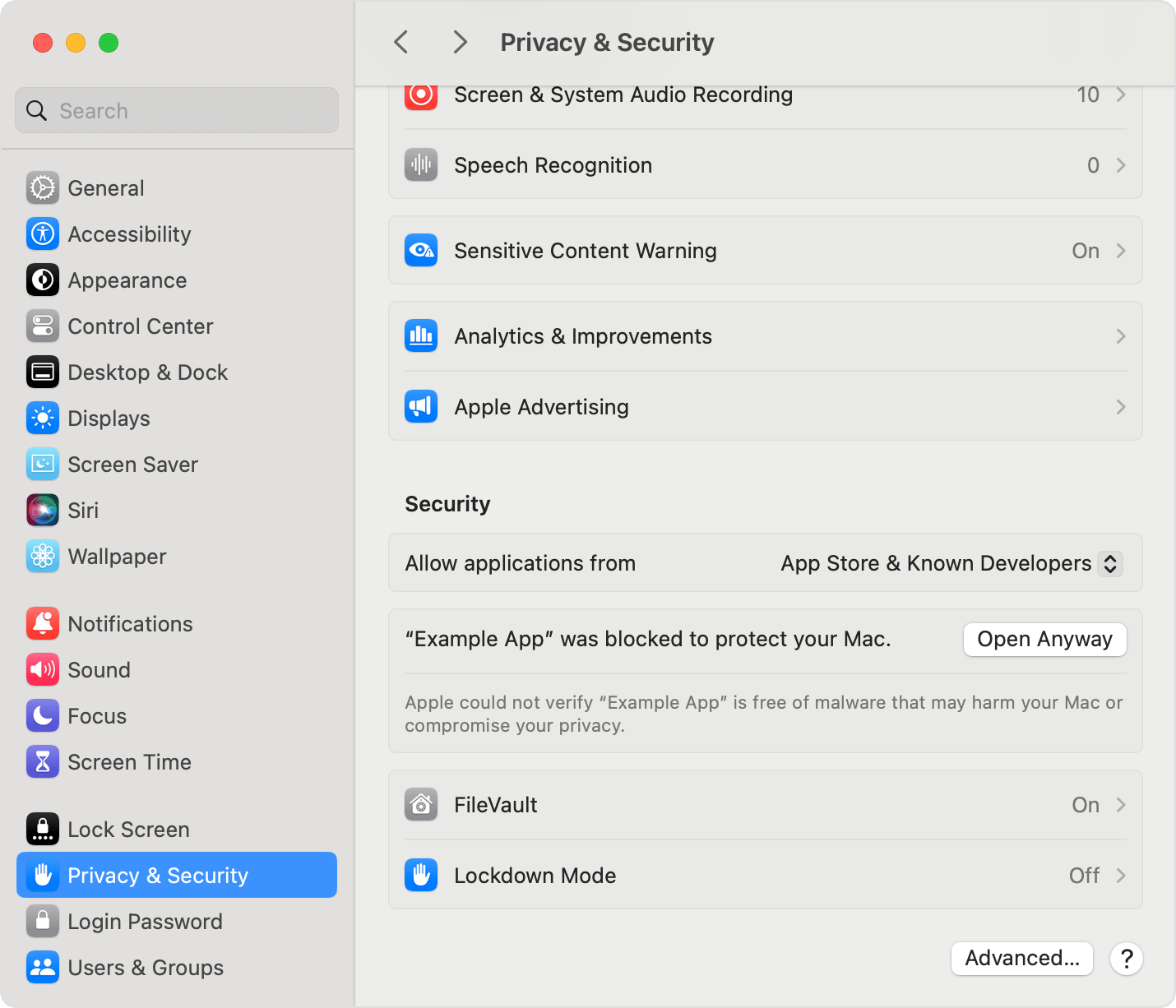
Official Apple screenshot: the Open Anyway button in Privacy & Security. macOS will save the exception, so you can open Kardly normally after that.
Read Apple’s official instructionsAbout “Allow apps downloaded from”
In Privacy & Security, you can allow apps only from the App Store or also from identified developers. This setting might be unavailable on Macs managed by an organization and does not replace checking an app’s source.
Connect your iPhone
Use a USB cable, unlock your iPhone and tap “Trust” if prompted. Keep Wallet open while adding cards or applying a design.
Close Wallet to see the change
When Kardly finishes, open the iPhone app switcher: swipe up from the bottom and hold in the center, or press the Home button twice. Swipe the Wallet window up, then reopen Wallet.
New Kardly builds include Python: you do not need to install Python or Apple developer tools.